Calibration Settings
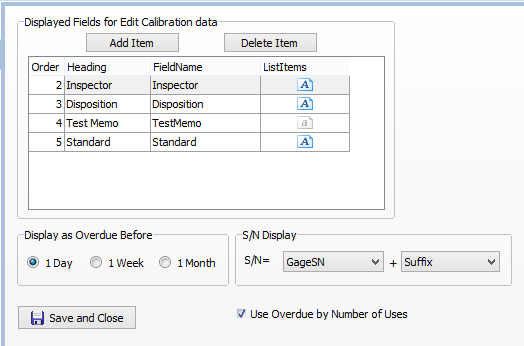
Displayed Fields for Edit Calibration Data - This contains a list of fields to be displayed for the "Calibration Info" items on the Calibration page. The "FieldName" column has a dropdown box that contains the choices of all the available fields. The "Heading" will appear next to the input box. The "ListItems" column contains any optional pick list items you want to show in the input box. Click on the ListItem cell to bring up the edit box for adding the list items. You cant use ListItems for Memo fields. "Order" is the displayed position in the list.
Add a New Field to the Dropdown List - The Fieldname Dropdown List shows existing available fields. If you want to create a new field that doesnt exist then go to the Settings - Tables page.
Display as Overdue Before - Do you want to display the gages in the Overdue page a week or a month before they are due so you can get a head start on them? Then you can change this setting.
S/N Display - This is only for showing the Serial Number on the Calibration page. You can select what fields you want to display there.
Number of Uses Checkbox - If you want to control calibration by the number of times the gage has been checked out, check this box. For each gage that you want to use this on, the "UsesBeforeCalibrate" field should have the number of times a gage can be checked out before it shows up in the Overdue list. The "UsesSinceCalibration" field will be incremented automatically every time a gage is checked out.
Add a New Field to the Dropdown List - The Fieldname Dropdown List shows existing available fields. If you want to create a new field that doesnt exist then go to the Calibration - Tables page.
Send Email - This can automatically send an email with a list of overdue gages on a schedule. You can send the email by starting Gage Control with the '/sendmail' parameter. The files libeay32.dll and ssleay32.dll must be in same folder as app for sending email.
.png)
To make a schedule, use Windows Task Scheduler:
.png)