Grid Customizing
There are several customizing features on the grids to get them the way you want. The grid settings are automatically saved for each user.
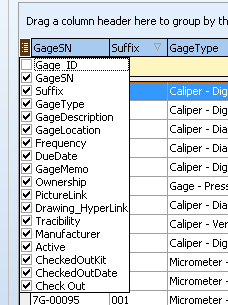
Columns to Display - You can choose which database columns to display by clicking the top left button on the grid. This will display a drop down list of all the fields in the database. You can turn each column on and off. You can also drag and drop the items in the list to re-arrange the columns. (see also Memo)
Arrange the Columns - You can put the columns in the order you like by dragging and dropping them over to another column.
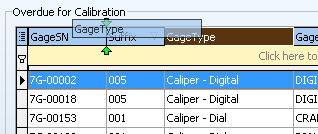
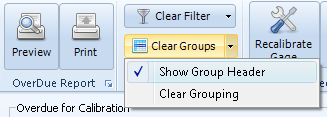
Grouping - You can group the data by column headers. Turn on the Group Column Row by clicking the down arrow on the Clear Groups button, and Show Group Header.
Drag a column header into the grouping row.
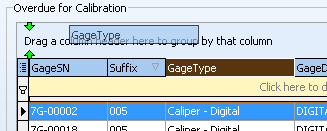
Then the items in the grid are grouped by that column. Each group has a plus/minus box to open and close the group.
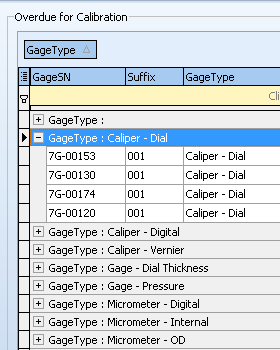
You can group by multiple columns. The Clear Groups button will clear and remove all the grouping.
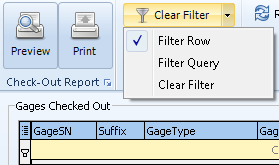
Filtering - You can filter by multiple columns. The Clear Filter button will clear all filtering to the grid.
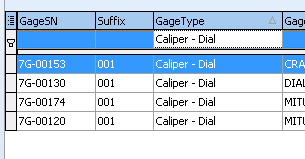
Sorting - You can sort the data in the grid by clicking the column header. An arrow in the column header shows if the column is sorted and whether ascending or descending. When clicked, it toggles between the two.
To sort by multiple columns, column headers should be clicked while holding down the Shift key. When data is sorted by a column, a small arrow is displayed in its caption indicating the current sort order. You can stop sorting against a particular column by clicking its header again while pressing the Ctrl key.
Refresh Grid - Most operations will automatically update the other grids when needed. There is a Refresh Grid button that may be needed when making changes in one grid, or making changes to the database outside of Gage Control. The F5 function key also does this.
File Links - Any field that has "hyperlink" in the field name can be run from GageControl grids. There will either be a "Run Hyperlink" item on the right click popup menu or double-click will open the file. Hyperlink fields should be a text or memo field that hold the full path and filename.
For instance, you can open PDF files that have the filenames stored in the fields as long as that file type is already associated with Adobe reader to open those kinds of files. Make sure whatever type of file name you are storing in the field is associated with a program that can open it.
The field must be put in the Displayed Fields settings for the memo edit box to take effect in the grids.
.png)
Double-clicking on a Hyperlink field in the Calibration Info will open the file explorer so you can add a filename.