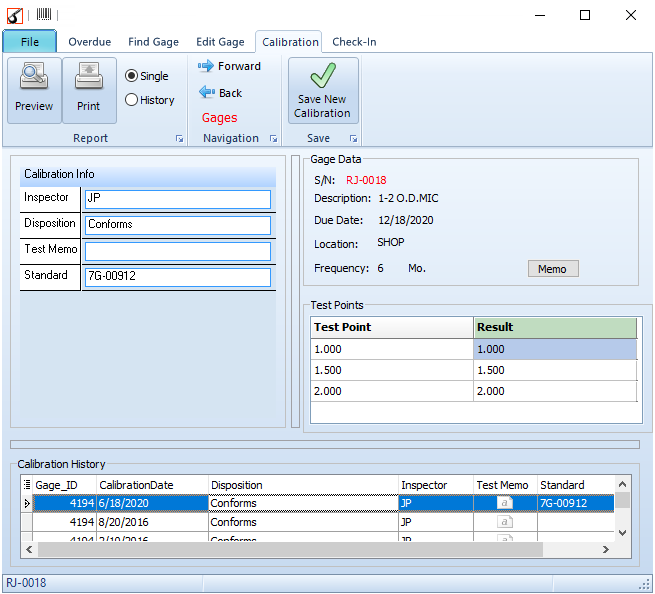
Calibration
This page is for entering a new gage calibration for an existing gage. The grid shows all the past history of calibrations for this gage. To enter a new calibration for this gage, fill in the boxes in the "Calibration Info" and "Test Points" area. These are user definable fields in the "Calibration Info".
The entries can have dropdown boxes with choices to make data entry as quick and easy as possible.
The Test Points belong to this gage. They are originaly entered on the Edit Gage page. Then they are displayed every time this gage is calibrated for you to fill out the results.
You have to press the "Save New Calibration" button in order to save the Info and Test Points.
When you make a new calibration, the next "DueDate" is automatically recalculated. The DueDate field in the GageMaster table will be updated.
In normal operation, there is no "CalibrationDate" field displayed in the Calibration Info edit boxes, and todays date is used for the CalibrationDate. The Frequency value is used to add on that many months to the CalibrationDate to get the next DueDate.
Alternatively, you can display the CalibrationDate in the edit boxes and enter a CalibrationDate different from today, the next DueDate will be calculated from that date. For instance, if you needed to add a gage that was calibrated a month ago already, you can back date the CalibrationDate a month, then the next DueDate will be the Frequency in the future less one month.
When the DueDate Changes it will dissapear from the Overdue page until next DueDate arrives.
Navigation Arrows - Forward and Back buttons move to the next or previous item in the Find Gage grid on Find Gage page. The list that the arrows are navigating through depends on what page you came from. So if you were on the Overdue page and went to the Edit Gae page, the navigation arrows would be going to the next and previous row in the Overdue page. And the page name is shown in red.
Grid Popup Menu - There is a right-mouse-button popup menu on the bottom grid for editing and deleting history items.
If you hold down the control key and click on one of the rows in the Calibration history grid it will fill in the Calibration info and the Test Point results for that calibration.
There is no provision for changing the data in an old previous calibration test point result.