.png)
Find Gage
This page lists all the gages in the database. You can enter Filtering and Grouping as an aid to working with the database.
Filtering - In the yellow row at the top of the grid, enter characters in a cell, and the whole list will only display the gages where that column has that value. You can use "%" as a wild card character, as in: 7G-02% to include any characters after the 2.
Sorting - You can sort the values in the columns by clicking on the column headers. You can sort by multiple rows by shift-click on the other rows.
Grouping - You can make groups of gages by dragging a column header to the group area above the grid. For instance, if you dragged the Gage Location column up there, then the gage list would be grouped by location with all the gages belonging to the the first location listed, then all the gages belonging to the second location listed next, and so on.
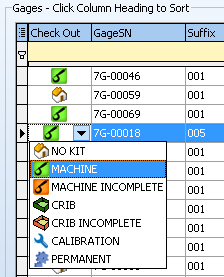
Check-Out - Mark a gage as checked out and it will show up on the Check-In page. See Check Out.
Edit Gage - When you go to the Edit Gage tab from here the highlighted gage will be automatically put in the Edit Gage page for editing. If you have turned on "Edit Grid" then you are able to edit the values directly in the grid on the Find Gage page.
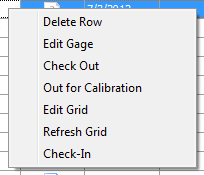
The right-click popup menu also has many of the same items available.