Inplot Script
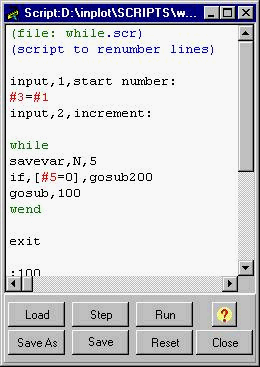
Opens the Script Window.
A script file is a file containing a list of commands that will make changes to the file in the edit window.
Press Load button to load an existing script file or type a list of commands into the script window and save them to a new script file. The default path is set in File-Configuration-Directories.
Press Step button to execute one command at a time.
Press Run button to execute entire script.
Press Reset button to got to start of script and clear variables.
Save and Save As will save the script file.
Script Commands:
ADD, address, value
If the line at the cursor position does not have this address, the address and value are added to the end. If the address already exists, the value is changed.
ASPACE
Adds spaces between addresses in the selected text.
BACK, number of lines
Moves cursor number of lines back in editor. If no number given then moves one line.
BREAKARC
Breaks arcs in the selected text so they will not go over one quadrant at a time. See Break Arcs.
CHAIN, script filename
Runs another script file at this point. When that secondary script file is through executing, the main script in the window continues processing with the next line. The default script path and extension are used if none are given.
Ex: CHAIN,MCODE
will load the script 'mcode.scr' and run it, then reload the main script and continue from the next line. Up to five levels of CHAIN can be used. Variables are global over all chained scripts. Jump numbers are local.
CHANGEV, address, existing value, new value
If selected text has this address with this existing value , then the existing value will be changed to the new value.
Special characters '<', '>', '*' will make special changes:
changev X,3.0,9.0 will change all X3.0 to X9.0
changev X<,3.0,9.0 will change X addresses if they are less than 3.0 to X9.0
changev X>,3.0,9.0 will change X addresses if they more than 3.0 to X9.0
changev X*,0,9.0 will change X of any value to X9.0
changev *,3.0,9.0 will change any address that has 3.0 to 9.0
If multiple lines are selected only those lines will be changed. If no lines are selected, file will be changed from cursor location to end of file.
COPY
Copies the selected text to the clipboard, so it can be pasted somewhere else later.
COMMENT
Places comment brackets around each line in the selected text.
CUT
Puts the selected text into the clipboard and deletes it from the editor. It can then be pasted into a different location.
DELETE
Deletes the selected text from the editor.
DELINE
Deletes current line from editor.
DELSTR, string
If 'string' is found on the current line, that substring is deleted from the line.
DPRNT, comm port, string
Sends a string out the serial port. LF+CR is appended to each line.
Ex: DPRNT,4,Hello World
END
Moves the cursor to the last line in the editor.
EXCELSTART
Connects to a currently open Excel spreadsheet. Use this command once at the beginning of the script before using the EXCEL command.
EXCEL, row, col, string
Send the string to Excel to be put into the cell at row, col. Use the EXCELSTART command one at the beginning of the script before using the EXCEL command.
Ex: EXCEL,2,3,This is some text
EXCELCOLOR, row, col, colorindex
Changes the color of a cell of a spreadsheet that has been opened with the EXCELSTART command.
EXIT
Stops executing script file. When chaining, the subscript will exit at this point.
EXECUTE, filename [, parameter] [, default directory]
Executes a program.
FINDSTR, text string [, comments (0 or 1)]
Starting at cursor position searches lines and stops at next occurrence of text string. The text string is highlighted within the line. If optional second parameter is 1 then it will look in comments, otherwise it skips comments.
FINDVAL, address, value
Starting at cursor position searches lines and stops at next occurrence of the address with that value. This function searches for the actual value according to the current format setting no matter what the actual string representation is. The address and value is highlighted within the line.
FORWARD, number of lines
Moves cursor number of lines forward in editor. If no number given then moves one line.
FRONT, string
Adds the string to the front of the current line. As in FRONT,G01
FRONT and REAR (and &FRONT, &REAR) can be used to put strings together to form one string. If there are script variables within brackets, then the variables will be turned into strings of the values in the variables and then added.
#3=7.89
&=(GO TO
FRONT,&
REAR,[#3]
will make a string '(GO TO 7.89
FORMULA
If there are any formulas of variables in brackets on the current line, it substitutes the current actual values of those formulas. The line G00X[#5*2] would be changed to G00X6.0 if #5=3.
GET, command [, param string] [,variable number]
This command has the ability to get various Inplot variables and put them into a script variable. Currently the available commands are:
GET,IGNORE,1 puts true or false (1 or 0) into variable #1 of setting of the "Use Ignore" on the syntax page.
GET,NCFILENAME,1 puts the current editor filename in &[1]
GET,FORMAT,A,1 this puts the format string of 'A' (A=000.0000) into &[1]. String is like the format string in Configuration Format.
GOBLOCK, block number
Starts search from beginning of file and stops at first occurrence of the 'N' address with the block number.
GOSUB, jump number
Calls a subroutine. Works the same as JUMP, but will return when RSUB is found. The script jumps to the line in the script window that has this jump number. A jump number is in the format of a colon and a number, without any spaces, as in :100 (on a line by itself)
Script will continue, but when RSUB is found, the script will jump back to the line after the last gosub call.
If jump line is not found then an error message appears.
Ex:
GOSUB 100 (has no colon)
GUTTER, [0 or 1]
Hides or Shows the Gutter on the editor in which you can use Mark to show marker icons.
HOME
Moves the cursor to the first line in the editor.
IF, expression, (jump or gosub or pause)
The expression is in brackets as in: [#1=3] or [#1<3] or [#1>3] or [#1<>3] or [#1<=3] or [#1>=3]. If expression is true then the script will goto JUMP number in 'jump'. You can use the word 'PAUSE' instead of a number and the script will stop running at that point if expression is true.
Ex:
IF,[#1=#2],100 (jumps to jumpnumber 100)
IF,[#1=#2],GOSUB100 (jumps to jumpnumber 100 and will return when hits RSUB)
IFEOF, jump or gosub
Checks if the cursor is at the end of the editor. If it is, script will goto the JUMP number in jump.
Ex:
IFEOF,100 (jumps to jumpnumber 100 if at last line of editor)
IFEOF,GOSUB100 (jumps to jumpnumber 100 if at last line in editor and returns when hits RSUB)
IFFIND, string, jump or gosub [, comments (0 or 1)]
Checks the current line in the editor for this string. If it is found then the script will jump to the jump number. If optional third parameter is 1 then it will look in comments, otherwise it skips comments.
Ex:
IFFIND,X,100 (if find the character 'X' then jump to 100)
IFFIND,X,GOSUB100
IFFIND,(,100,1 (if finds the character '(' on the line then jump to 100. look in lines including comments)
INSERT, text string [, after (0 or 1)]
Inserts text string above the line that the cursor is on. The semicolon ';' character will add a carriage return/linefeed, so 'G00X1.0;G01X2.0' will insert two lines. If 'After' code = 1 then the string is inserted below the line.
INSTR, text string, position
Inserts text string into the current line in the editor at the character position. If the current line in the editor is G00X1.0F1.0 then INSTR,Y2.0,8 will make the current line G00X1.0Y2.0F1.0
ITEM, item number, address, variable number
When there is more than one of the same address on a line in the editor, this command can be used to put a certain one in a variable. You can use NUMBEROF to find the number of same addresses and then use ITEM to read each of them into a variable.
For example, if the line has multiple M codes: N0200M09M05M19
ITEM,3,M,1 will put the value of the third M code into variable #1
INPUT, number [, description]
Displays Dialog Box for entering a value or a string. The command INPUT,3 will display a box where the user can enter the value he wants to store in variable #3. If the text if surrounded buy single quotes or a single quote at the begining, the value will be interpreted as a string and put into &[3], otherwise it will be interpreted as a number and put into #3.
Description is optional. Dialog Box will display description, otherwise it will display variable number.
INPUTX, address
Inserts the tool position values into the current line, like CAM Buttons.
INPUT X, or INPUT Y, or INPUT Z, or INPUT XY, or INPUT XZ
JUMP, jump number
The script jumps to the line in the script window that has this jump number. A jump number is in the format of a colon and a number, without any spaces, as in :100 (on a line by itself)
JUMP 100 (has no colon)
If jump line is not found then an error message appears.
MARK, marker number [ or CLEAR
Puts a Marker Number in the editor gutter. There are gutter marks 1 to 9. Marker Number can be removed with 0 for value. The marker value of -1 will clear the whole editor gutter of all marker numbers.
MARKER, marker number
Puts current line number in memory so it can be returned to later. Return to the line with RETURN. There are 10 marker numbers available.
MEMVAR, number
Defines how many script variables are available. There are by default 699 script variables. If you need more than that, you can put the MEMVAR command and the number of variables you want in the script. This value is global over all scripts. The number of variables is limited only by available memory. If you attempt to use a variable number that has not been defined you will get a message of 'Variable Number Out of Range'.
MERGE, filename
Will merge the file into the editor at the current position.
MESSAGE, string
Will stop and display message box. Click OK to continue.
NUMBEROF, address
Puts the number of times this address occurs in the current line in the editor. You can use this with ITEM to get the values of multiple same addresses. Can be used only with setting a variable.
NUMBEROF,G,9 will put the number of times the address G appears in the line into variable #9
OFFSETNC, address, value
If the address exists in the selected text, the value is added to the existing value. If cursor is at top line then all text in the edit window will be processed.
ORDER, [order string]
Puts the addresses on each line in the selected text into the order specified by order string. Order string is a string of addresses. If no order string is given, the current default setting is used.
PASTE
Put the text that is in the clipboard into the editor at the cursor position.
PAUSE
The script stops running when the pause command if found. After it stops at this line, you can use the step button to step through or continue with the run button.
POS, text string, variable number
Will search the current line in the editor and put the position of the start of 'text string' into variable 'variable number'. If the current line is G00X1.0 Y2.0 then POS,X,3 will put the value 4 into #3
PLOT, string
Sends this string of characters to Inplot to be processed the same as if Inplot was reading the line from the editor. You can include variables in the string and they will be filled in with the current script variables. If the string is "$" then the current line in the editor is plotted.
With this function you can create a pre-processing script that will take NC codes from a non Fanuc control that Inplot does not understand and change them to something that can be plotted.
Example: PLOT,G#5X#1Y#2
or PLOT,$
See Also: Pre-Processing Script
RBLANK
Removes blank lines from selected text.
REAR, string
Adds the string to the end of the current line. See FRONT
REFORMAT, [from format number, to format number, arcs]
Changes the format of the address values in the selected text. Format number is the number of the machine displayed on the main menu. If no format numbers are given, text is reformatted to the current format number. The optional third parameter is 1 for also change the arc format, 0 for leave them alone. Like in the Reformat dialog box.
REMOVE, address, [confirm(0 or 1)]
Will remove the address and its value in the selected text. If cursor is at top line then all text in the edit window will be processed. If address is the start comment character, the entire comment will be removed from the line.
RENUMBER, [start number] [,increment] [,address] [,existing blocks only (0 or 1)] [,include comments(1 or 0)]
If lines are selected, only the selection will be renumbered. If cursor is at first line in file, the whole file is renumbered. If start number and increment is not given the current default settings are used.
REPLACE, existing text string, new text string [, in comments (0 or1)]
If selected text has this existing text string, then it is changed to the new text string. If cursor is at top line then all text in the edit window will be processed. New text can contain multiple lines by including two semi colons (;;) as a separator.
Example: REPLACE,P,;;N1P
will change N1000G00X2.0Y3.1P99
to:
N1000G00X2.0Y3.1
N1P99
REPSEL, new text
Replaces the selected text with the new text. Lines in the editor can be first selected with SELECT, FINDSTR or FINDVAL.
RETURN, marker number
Goes to line that was put into memory with MARKER.
REVERSE
Reverses the order of the lines in the selected text. Lines of text must be selected.
ROTATE, angle, axis
Rotates the NC code in the selected lines in the editor. Rotates around X0, Y0.
RSPACE
Removes spaces between the addresses in the selected text.
RSUB
Return from subroutine. Returns to last call of GOSUB. Script continues from next line after the GOSUB call.
SAVEVAR, address, var number
If the current line contains this address then the value of this address is put into a variable that can be used later. Var number is the number of the variable into which the value will be loaded
Ex: SAVEVAR,X,4
Puts the X value of the editor current line into variable #4
SAVEFILE, filename
Saves Editor contents to this filename.
SAVESELECT, filename
If lines are selected in the editor, they will be saved to this filename.
SCALE, address, value
If the address exists in the selected text, the existing value is multiplied by this value. If cursor is at top line then all text in the edit window will be processed.
SELECT, [start line, end line]
Selects text from start line to end line. Cursor is at end line. Use this to select a section of text to perform the next operation on. If no start line and end line is given, then line the cursor is on is selected.
SET, command [, param string] [, value]
This command has the ability to set various Inplot variables and configurations. Currently the available commands are:
SET,COLOR,1 sets the current drawing color. Values 0 to 15.
SET,IGNORE,1 turns on and off the "Use Ignore" on the syntax page with 1 or 0
SET,NCFILENAME,TEST.NC sets the current editor filename that will be used on save. (doesn't change the file)
SET,FORMAT,A=00.0000 this string is like the format string in Configuration Format.
SET,DECIMAL,A=111 the param string represents address equals three digits of ones or zeros. First represents Use Decimals, Second represents uselike the format string in Configuration Format.
STATUS, string
Displays the string in the bottom status bar.
STRIP, strip string
Removes redundant values in the selected text. Strip string is a string of addresses to check. This is for removing extra feeds, G codes, etc. that are not needed in the program.
STRCMP, first string, second string, jump number
Compares two strings and if they are the same will jump to jump number. Can use string variables. If first string is '$' then current editor line is substituted.
SWITCH, address1, address2, [reverse1(0 or 1), reverse2(0 or 1)]
If the two addresses exist in the selected text, the two values will be switched with each other. If reverse1 or reverse2 equals 1 then the sign on that address will be reversed.
SYNTAX
Checks the editor text for errors. See Check Syntax.
TRIM, start, length
Deletes characters from the current line starting at Start position value for Length value of characters
UNCOMMENT
Removes the comment brackets from around each line in the selected text.
******************************************
These two are a loop control to make it easier to go through a section of text or the whole file.
WHILE
WEND
(file: renumber.scr)
(script to renumber lines)
input,1,start number:(enter the Block Start Number)
#3=#1
input,2,increment:(enter the Block Increment)
while
savevar,N,5(saves the N number)
if,[#5=0],gosub200(if there isn't any N number, go to sub 200)
gosub,100(change the N number)
wend
exit(end the script)
:100
#3=#3+#2(increment the blocknumber)
changev,N*,0,#3(change any N to the new blocknumber)
aspace(seperate the addresses with spaces)
rsub
:200( for when there isn't any existing N)
front,N(put an N in the front of the line)
select(select the line to make sure we only operate on this line)
rsub(return)
This Script will renumber the program.
1. Input dialog boxes ask for start number and increment.
2. When WHILE is first activated it will determine which lines in the editor you want to operate on. If any text is selected, it will operate on those lines only. Otherwise, it will start at the current cursor location and go to the end of the file.
3. The commands between WHILE and WEND are done on each line.
4. When done with the last line then goes to next script line after WEND.
*******************************************************************
Printing Commands
PRINTBEGIN
Starts the connection with the Windows print device. This must be called first before any of the other script print functions are called. If you try calling any of the other print functions before this you will get an error message saying "printer not currently printing". If this command is given twice without calling PRINTEND you will get the error message "Printing in Progress". You must call PRINTEND to cancel the job.
PRINTEND
Ends the print document and starts sending it to the printer. This must be called at the end of the print job in order to send the job to the printer and close the connection. PRINTBEGIN must be called at the beginning of the print job or you will get an error "printer not currently printing"
PRINTFF
Sends a form feed to the printer. Use this start the next page.
PRINTMARG, number
Sets the width of the left margin in inches.
PRINTSIZE, number
Sets the size of the printer font in points.
PRINTFONT, string
Sets the printer font to this font name.
PRINTDATE [, line number]
Prints the current date at the current print position, or the line position entered after the comma.
PRINTLN [, string] [, line number]
Prints the string at the current line position, or at particular line given in Line Number and then moves the current line position to the next line . If no parameter is given, then just moves the current position the the beginning of the next line.
PRINT [, string] [, line number]
Prints the string at the current line position, or at particular line given in Line Number
PRINTLNH [, string] [, line number]
Same as PRINTLN but with yellow background on text.
PRINTH [, string] [, line number]
Same as PRINT but with yellow background on text.
The & symbol can be used to print string variables or the current editor line. Numeric variables can be printed by enclosing them in brackets as in: PRINT,[#2] will print the numeric value in variable 2.
println,&[#8] will print the string variable.
If variable #6 equals 100 then print,D[#6] will print D100
To print the current line with $, put it in a variable first. As in:
&=$
PRINT,&
*******************************************************************
Variables
. There are by default 699 script variables available: #1 through #699. These names can be used in the script file any place a number parameter is required. If you need more script variables, see MEMVAR command.
Variable=value
Assignment of variable. Left side is a script variable #1 to #6
99. Right side is value.
LINENO is the current line number. STARTSEL is the start selection line number. ENDSEL is the end selection line number. LENGTH is the number of characters in the current line. LASTLINE is the how many lines there are in the editor, and the line number of the last line. Example:
#1=STARTSEL
#8=LINENO
#2=LENGTH
#3=LASTLINE
SELECT,#1,#3
You can have a variable variable number as in:
#1=5
#[#1]=3
This will put the value 3 into #5
*******************************************************
Note:
Command names are not case sensitive.
Address is any character.
Value is any number or variable.
Number is a value that will be rounded off to the nearest integer.
String is any string of characters.
Comments can be added to the script with parentheses '(' at the beginning on a line by itself or at the end of a command
To use special characters in the string parameters, you can surround the string with single quotes. For example, POS,',', 3 would give the position of the first comma in the line. NUMBEROF,' ' would find the number of spaces in the line.
Do not put comments on same line as FINDSTR, REMOVE, REPSEL, INSERT, PLOT, IFFIND, since these commands can use the comment character in the parameter values.
You can stop the running of the script by pressing the right mouse button or the ESC key.
Script variables refer to the same items as the variables running in the Inplot editor. If there is a Fanuc program in the editor that is using Fanuc variable #1, then the script variable #1 is the same thing. This can be an advantage in that you can read and change the program variables from the script, but you also must make sure that you are using different script variable numbers when you don't want them to interfere with each other.
For fastest possible running of script, take out comments and put in toolbox so it can be run without opening the script window.
*****************************************************
Example of loop that inserts G00 after the next 5 lines.
(set variable to 1)
#1=1
(start of loop)
:100
(insert after line at cursor position. Cursor goes to next line)
insert G00
(increment variable)
#1=[#1+1]
(check if variable is greater than 5. If it is then jump to :200. Which is out of loop)
if, [#1>5],200
(jump back to start of loop)
jump 100
:200
Supports functions: ROUND, SIN, COS, ATAN, SQRT, ABS, EXP, LN, FIX
Function must be surrounded by brackets:
#1=[atan[#2]+1]
#1=[round[#1]]
if, [[round[#1]]>2],400
(file:block delete.scr)
(script to put block deletes)
(in front of selected lines)
(skips comments)
#1=startsel
#2=endsel
#3=#1
select, #1
:100
iffind, /, 300
iffind, (,300,1
front /
:300
forward
#3=lineno
if, [#3>#2] ,200
#3=[#3+1]
jump, 100
:200
Script String Functions
The '&' symbol has a special meaning. You can put the current editor line into this string variable and then do operations on it. The '&' symbol represents this string variable.
The '$' symbol represents the current line in the editor. So, we can set the string variable to the current line with:
&=$
Also, any string or empty string can be assigned to it.
Once we have something in the string variable, we can do operations on it. Certain of the Script functions can be used to operate on the string variable by putting '&' as a prefix. The script functions that can used with the string variable are: &ADD, &CHANGEV, &DELSTR, &FRONT, &IFFIND, &REAR, &REPLACE, &REMOVE, &SAVEVAR, &SCALE, &LENGTH, &NUMBEROF, &POS, &FORMULA, &ITEM, &INSTR, &TRIM. These work the same as the regular functions except they operate only on what is in the String Variable.
The String Variable can be plotted with: PLOT,&
******* Script String Variables *******
There are ten string variables (0 to 9) that can be used to store any strings. They are accessed by a number in brackets after the &. As in &[3]. The & without any brackets is the same as &[0].
Assign with '=' Example:
&[2]=PN 12300 OP 20
REAR,&[1]
If there are script variables within brackets, then the variables will be turned into strings of the values in the variables and then added.
&[1]FRONT,[#1]
The individual characters of the string can be accessed by having two numbers in brackets after '&'. Each character can be assigned to with '='. Example:
&[1,1]=W will change the first character in string 1 to 'W”.
IF,[&[0,5]=W],40 means if the fifth character is 'W' the jump to 40
Or IF,[&[#3,5]=W],40
Set the fifth character to 'W' with &[#3,5]=W
To use special characters like spaces, put single quotes around them.
If,[&[0,#44]=' '],50 will jump to 50 if the character is a space.
The current editor line can be changed with: $=&
To output a comma as text in commands like Front, Rear, Insert, etc, surround one comma with single quotes as: REAR, ','
*********** Editor Lines ************
The lines in the Editor can be accessed as an array using the $ character with the line number in brackets. A character in the line can be accessed by two numbers in the brackets. Line 0 is the current line.
Example:
$[20]=&[3] (sets line 20 in editor to what's in string variable 3.
&=$[0,5] (sets string variable 0 to the fifth character in the current line.
$[#15,#9]=H (changes character to 'H')
_______________________________________
DRAW COMMANDS
You can draw points, lines and arcs in the plot window with the DRAW commands. They are drawn in the current color on the current layer.
DRAWPOINT,X,Y,Z
DRAWLINE,X1,Y1,Z1,X2,Y2,Z2
DRAWARC,CENTERX,CENTERY,CENTERZ,RAIDUS,STARTANGLE,ENDANGLE
Elements can be added to drawing with the MAKE commands. They are made on the current_color and current_layer.
MAKEPOINT,X,Y,Z
MAKELINE,X1,Y1,Z1,X2,Y2,Z2
MAKEARC,CENTERX,CENTERY,CENTERZ,RAIDUS,STARTANGLE,ENDANGLE
_______________________________________________________________
Find and Replace dialog boxes available for the editors by pressing Cntrl-F for find, and Cntrl-R for replace.
A default script can be loaded into the script window at startup by putting a line in the machine INI file with:
DefaultScript=filename.scr
filename must contain the full path.
Copyright © 2020 i-Logic Software