Contour
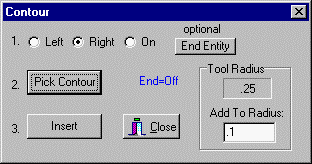
Pressing the Contour button.gif) will bring up the Contour dialog Box. This will allow you to chain a series of connected entities automatically and input the toolpath to the editor. You pick the start end of the first entity and Inplot will chain together all the connected entities.
will bring up the Contour dialog Box. This will allow you to chain a series of connected entities automatically and input the toolpath to the editor. You pick the start end of the first entity and Inplot will chain together all the connected entities.
The radius of the currently loaded tool is displayed in 'Tool Radius'. You can add or subtract from this radius by entering an amount to 'Add To Radius'. The toolpath will be offset to the left or right side by the sum of these two amounts.
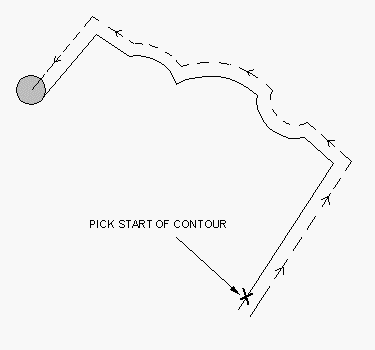
1.First choose the side of the contour to offset the tool towards. Looking at it as though you were standing on the contour line walking from start to finish, do you want the tool to be on the Left or Right side of the contour? 'On' means the toolpath and program path of the tool will be exactly on the line.
Optionally, you can choose an entity along the contour to stop at. Press the 'End Entity' button and pick some entity along the contour. Otherwise, the contour will go until it comes to the end.
2. Press the Pick Contour button and then pick the first entity along the contour. Pick the entity on the start end. Chaining will go from there to the other end of that entity and continue until the last entity or the 'End Entity' you picked. The toolpath will be displayed.
3.If the new path looks right you can insert it into the editor at the cursor position by pressing the 'Insert' button.
Make sure there is not multiple elements on top of each other or chaining will get caught in a loop. You can use CAD - Delete - Duplicates for this.
_________________________________________________________________
Copyright © 2020 i-Logic Software