View Buttons
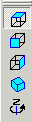
Top View
For System Type Mill , this is the normal X,Y axis view of the CAD file and NC plotting.
Front View
For System Type Mill , this is an X,Z axis view of the CAD file and NC plotting.
Right Side View
For System Type Mill , this is a Y,Z axis view of the CAD file and NC plotting.
User Defined View
When in System Type Mill, this button will display the CAD file and NC plotting in the user defined view. This default view of this button is an isometric view, but can set to any user defined view. To set the user defined view, open Configuration - View.
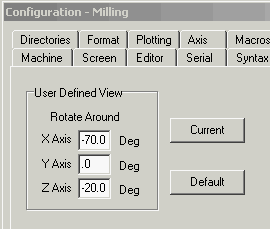
Set this view by entering how much to rotate around the X, Y, and Z axis from what is shown in the Top view. You can dynamically rotate the view around visually by holding down Alt key and dragging mouse with left button down. The Current button will insert this current screen view. The Default button will set it back to the default isometric view. Then press save.
Drawing Depth
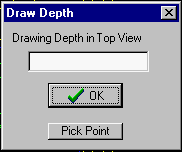
Pressing the right mouse button on top view will bring up the Drawing Depth Dialog. Whatever you draw in that view will be at that depth
 Rotate View
When the plot view is not in the Top View, you can rotate the view around the Z axis with this button. Click the button and it will rotate in the positive direction. Hold down the Control key while clicking, and it moves in the negative direction. Holding down the mouse button gives a continuous rotation.
Fanuc Sync M-Code Start
When using a Fanuc Twin-Turret configuration, the upper and lower turrets are synchronized by finding the same M-Codes in both programs. By default, Inplot uses M500 to M999 as the Sync Codes. On older machines, you may need to start at M100. Or you can set some other number in the machine INI file with FanucSyncStart=
See Also Sync-Turret
_________________________________________________________________
Copyright © 2020 i-Logic Software