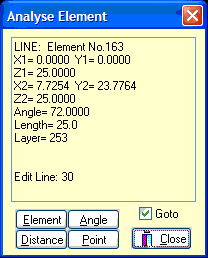
The Analyse dialog box displays information about elements on the screen that you pick by clicking on them with the mouse.
On the CAD menu when you choose Analyse a dialog box will appear. You can then pick CAD elements in the Plot Window and information on that element appears in the dialog box.. There are four modes of analysing the elements: Element, Angle, Distance, and Point. The default mode when it opens is Element. Go into the other modes by clicking on one of the four buttons.
Analyze: Element - Shows information on the CAD element according to whether the element is an Arc, Line, or Point.
Analyze: Angle -Pick two lines and dialog box will show angle information.
Analyze: Distance -Pick first point, then pick second point. Dialog Box appears with dimensional information.
Analyze: Point -Pick point. Dialog Box appears with X,Y,Z.
Analyzing Toolpath -You can analyse elements of the toolpath the same way if the toolpath is saved as CAD elements by unchecking Temporary Toolpath in Configuration - Screen.
Jump to Edit Line - You are able to find out what line in the program created a particular element of the toolpath. When the toolpath is plotted into CAD elements, you are able to pick on a toolpath element and the editor will jump to the line in the program that created that element. After plotting the toolpath of the program, check the Goto check box in the Analyse dialog and then pick on a toolpath elemen. The editor will jump to that line.
If you want to jump to a line that is in a sub program you will have to plot the toolpath with "Step Subs" on in Configuration - Plotting using the Plot Auto button.
If you make changes to the file in the editor, you will need to replot the file to make sure the toolpath accuratly reflects the file. Temporary Toolpath must be unchecked in Configuration - Screen.
Copyright © 2020 i-Logic Software