Configure: Screen
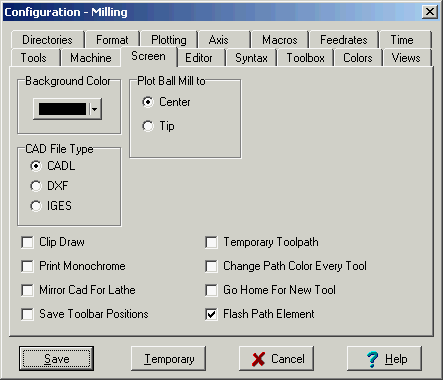
Background Color - The background of the plot window can be set to your choice of color.
CAD File Type
CADL files are CAD drawings saved in an ASCII text file format originated by CADKEY. INPLOT only supports line, arc, circle and point element types. Tool Files used in INPLOT must be in CADL format.
DXF files are CAD drawings saved in an ASCII text format originated by AutoCad. INPLOT only supports line, arc, circle, point and polyline element types. Polylines are turned into individual lines.
IGES files are CAD drawings saved in a public standard ASCII text format. INPLOT only supports line, arc circle and point element types.
If Mirror Cad For Lathe is checked, then when the CAD file is displayed, it is duplicated and mirrored across the centerline to show the other half of the part. With this, you only need to draw the top section of the lathe part and it will be displayed in both halves for the Twin Turret option.
Check Save Toolbar Positions if you want to save them in different positions than the default. The positions of the toolbars at the time of exiting the program will be saved.
Clip Draw -- Some graphics cards loose some lines and arcs when zooming up close. Check Clip Draw and Inplot will break them up into smaller segments. This may make the redraw display slower.
Print Monochrome -- Inplot normally prints in color. If the you want to only print in black and white, try checking this.
Plot Ball Mill to -- When you use a mill tool comment code that includes a readius on bottom, Inplot can plot the picture of the bottom radius at the center of the radius or the bottom tip of the endmill, depending on which is checked.
Flash Path Element -- When this is on Inplot will keep flashing the last plotted move. This is handy for seeing where you are when there is a lot of lines in the toolpath. It goes away when the redraw screen button is pressed.
Go Home For New Tool -- When loading a new tool, Inplot sets the current position and draws the new tool at Home Position. Use this to help get the tool picture off the screen when changing to a new tool picture. If the program position is not off the screen when a new tool picture is loaded, you may get leftovers from the last tool.
Change Path Color Every Tool -- When this is on Inplot will change the plotting whenever it reads T code in the program. It cycles automatically through 7 colors See Also: Comment Code TPC
Temporary Toolpath -- When this is unchecked the toolpath plot is plotted as CAD elements in the plot window and saved to memory so when you zoom or change the view the toolpath is redrawn. You can also analyse the elements of the toolpath. When this is checked, the toolpath will disappear when the view is changed. You might need this when you don't want the toolpath to take up memory. The saved toolpath will be erased when you press the Redraw button (F3).
See Also: Save Toolpath
Round Circles and Square Pixels -- If your screen resolution doesn't have evenly shaped square pixels then you may get circles that look like ellipses. If you can't adjust it in you monitor you can adjust it in the Inplot,ini file. Open the file inplot.ini and under the [Inplot] section make an entry YScale=1.0. Changing the value to a lower number like 0.9 will make the circles fatter. Changing the value to a higher number like 1.2 will make the circles taller. Find some number that makes it look just right.
_________________________________________________________
Copyright © 2020 i-Logic Software