Load Tool
Load Tool
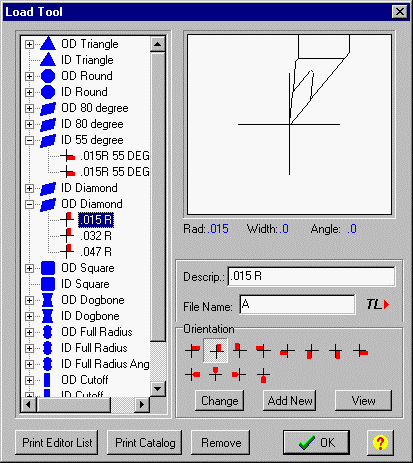
List box displays the entries that are on the Tool List File
The name of the tool list file is set in the machine Configuration-Tools dialog box. The default name is 'tools.txt'.
This file must be in the directory with the current tool file path name.
The list is made of Category names and Description names.
Notice the Insert Shape glyphs 

 next to the Category names
Notice the Orientation glyphs 

 next to the tool Description. These are visual indicators of the tool set orientation for this tool.
Clicking on any tool on the list will display a preview picture of the tool showing the tool setting orientation.
Enter name of tool (which is the same as the file name) in the edit box or pick from the list.
Loading a Tool for the Current Plotting
1.Click on a Category on the list.
2.Click on one of the tool descriptions.
3.Click the OK button.
Normally, you would want to load tool pictures automatically as the program is plotting with Comment Code TL
Adding a New Tool to the List
1.Draw the tool and save the file in CADL format.
2.Open Load Tool dialog box and click on a category on the list to highlight it.
3.Click the Add New button.
4.Enter a description in the description box.
5.Enter the name of the file you made in the file name box. You can search for a file by clicking the 'File Name' button. Spaces are not allowed in filename.
6.Click on the orientation icon that corresponds to the settings made in the tool drawing.
7.Click the Add New button
You can also drag and drop tool cad files from Windows Explorer to the tool picture window to view and drag and drop tool files to the tool list tree to add.
Making changes to a Tool on the List
1.Highlight the tool on the list that you want to change.
2.Make changes to Description, File Name, and Orientation.
3.Click the 'Change' button. The changes will be saved when you close the dialog box.
Deleting a Tool from the List
4.Highlight the tool on the list that you want to delete.
5.Click the Remove button.
6.The changes will be saved when you close the dialog box.
How to Load a Mill Tool
In the File Name edit box, enter 'TM', space, and the diameter of the tool.
Example: TM .5
View a Picture of a Tool
You can also preview a tool by typing in the tool name (which is the same as the file name) into 'File Name' box and clicking the 'View' button. You can also drag and drop tool cad files from Windows Explorer to the tool picture window.
Print Catalog
The Print Catalog button will print out pictures of all the tools contained in the Load Tool list along with tool information.
Print Editor List
The Print Edit List button will print out pictures of all the tools contained in comment codes in the editor along with tool information. There is a utility program to create a text file of comment codes of all the tool files in a directory at the i-Logic web site. With that you could print pictures and names of every tool in a directory in a three column list.
TL> This button will insert a comment code for this tool in the editor at the cursor position.
You can also add the tool manually to the tool list file. See: Tool List File
The name of the currently loaded tool is in the Tool Name Window on the Status Bar .
_________________________________________________________________
Copyright © 2020 i-Logic Software