Configure: Plotting
oo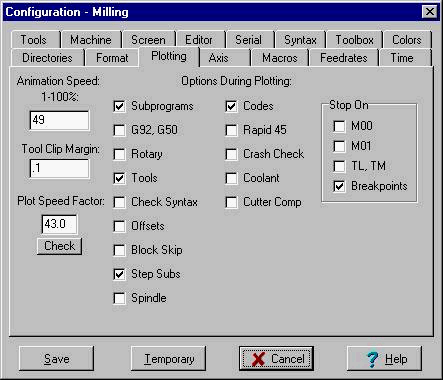
Animation Speed
Animation only operates when Animation main menu item is checked.
The default value on startup is set with the Animation Speed entry.
When plotting, control the speed of the tool animation with the slider control.
Plot Speed Factor
Adjusting the range of speed for faster and slower computers can be set with this number. Setting to a smaller number will make a range of faster speeds for the slider control. If the animation range is too fast enter a bigger number. The Check button will atempt to find an average speed for this computer.
Clip Tool Margin
During animation of tool, if the tool point is more than this amount out of the window (in window scale inches), the picture of the tool will not be plotted. This means that when you have zoomed in to a small section of the part, Inplot will run faster by skipping the plotting when the tool is off the screen.
Options available during plotting the toolpath.
Subprograms
NC codes M98, M99, G65 and user G codes over 100 are activated.
If this item is checked, when "M98" is found during plotting Inplot will look through the all the text in the edit window starting at the beginning until it finds a program number the same as in the P address on the M98 line. If not found, Inplot will look for a file in the NC directory with that name. With this you can have the subprograms in external files. If this is not found, then an error message is displayed.
This has to be turned on for any of the program commands that jump in the program to work. Like GOTO, IF, WHILE, jump to external file, etc.
Note: for Okuma control the optional GOTO in the IF statement must be used.
Block Skip
When this item is checked, lines in the editor that have "/" at the beginning will not be plotted.
G92, G50
If this item is checked, the system will take the X, Y and Z values on the line with "G92" or "G50" and move the origin on the plot window to represent the new values. All plotting after that will be in relation to the new origin.
Only the axis that is the G92 block will be affected.
Rotary
When this item is checked, and Inplot is in Milling mode, the values found in the A, B and C axis moves will rotate the plotted tool path around the specified axis. See also: Configure Rotary Axis
Tools
If this item is checked, pictures of tools will be loaded when the comment code "(TL" is found. See also: TL, TM
Offsets
When this is checked, plotting will use any offsets that are loaded, either with the 'TOF' comment code or using the G10 code to load G54-G59.
The "(TOF" comment code will operate when this menu item is checked. See also: TOF
See: Offsets
Codes
None of the Comment Codes will operate unless this menu item is checked.
Enables checking for errors in the text of the editor during plotting.
Step Subs
Enables stepping through the subprograms during plotting. Otherwise calls to sub-programs will plot the sub-program but will not highlight the lines of the sub-program in the editor.
Rapid 45
Enables 2-axis rapid moves during plotting to be shown as a 45 degree path to accurately show the movement on some machines.
Crash Check
When Crash check is enabled and Solids is turned on and the solid part is drawn in the lightgray color, Inplot will check if the tool path hits the part during rapid moves. Needs the Toolnose info filled out for the tool. See Solids
Check Spindle
When Check Spindle enabled, Inplot will check if the spindle has been turned on before the machine has a feed move.
Check Coolant
When Check Coolant enabled, Inplot will check if the coolant has been turned on before the machine has a feed move. With this turned on, feed moves will be plotted in white color when there is no coolant. See also Config-Syntax.
Cutter Comp
Enables showing the offset toolpath during cutter compensation, G41 and G42, simulating the path as it would be on the machine. The amount of the tool offset is half the tool diameter of the '(TM' comment code plus any entered in the Tool Radius Offset Dialog Box in 'Amount to Add to Radius'. Values can be entered into this amount with the 'TOR' Comment code .
Stop On - Checking these will allow plotting to stop when the editor hits one of these items.
M00,M01 - stop when find these in program. Leading zero is not needed.
TL,TM - stop when new tool picture comment code is found.
Breakpoints - stops at a line that has a breakpoint in the Gutter.
See also Config-Syntax.
See: Configuration
_________________________________________________________________
Copyright © 2020 i-Logic Software